

Audits
An audit in qportal represents a single examination or review. It brings together an audit team, a scope defined by an org unit and a question catalog, findings, and action items.
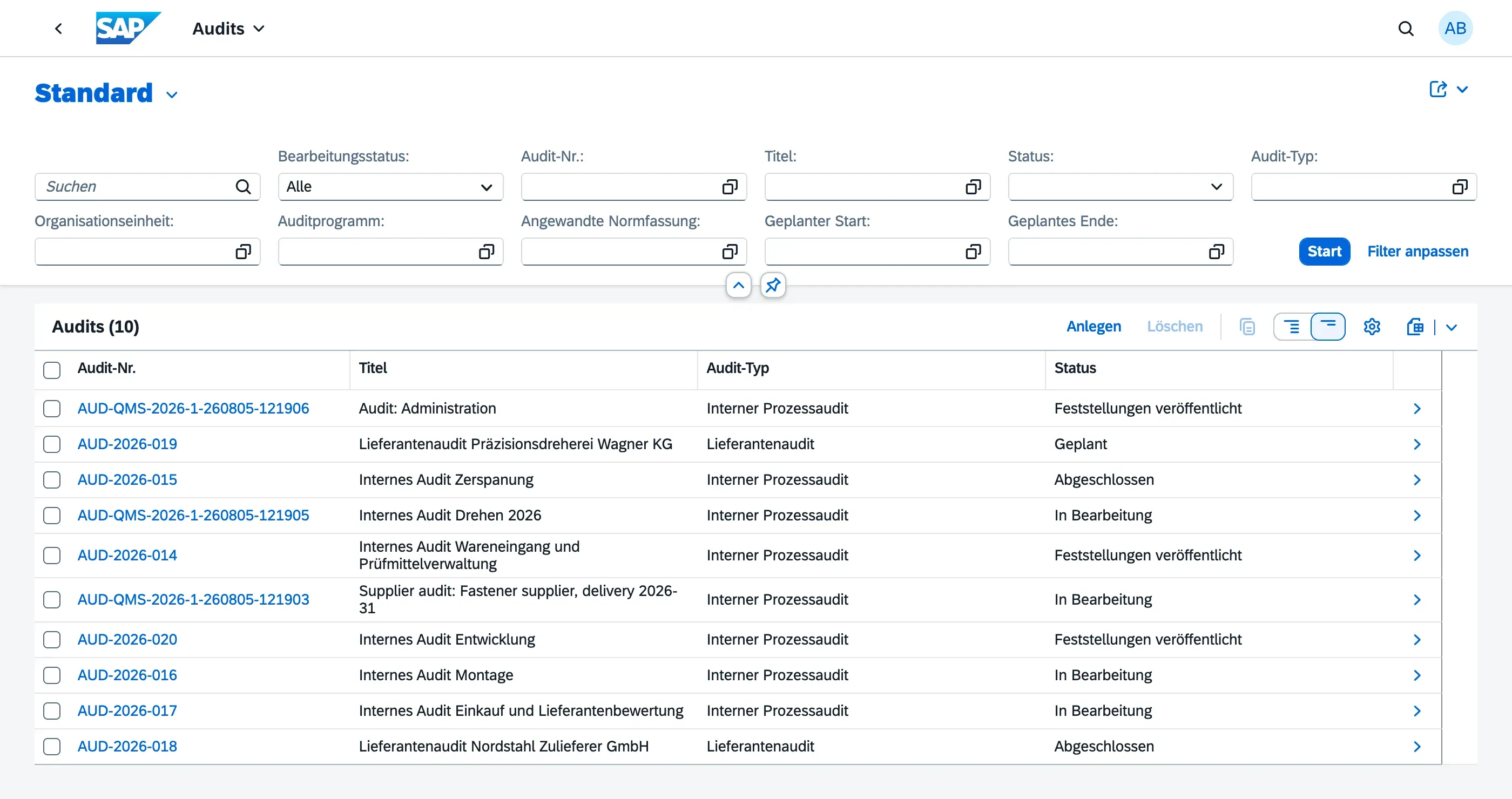
Creating an Audit
Section titled “Creating an Audit”- Navigate to Audits in the Launchpad
- Choose Create
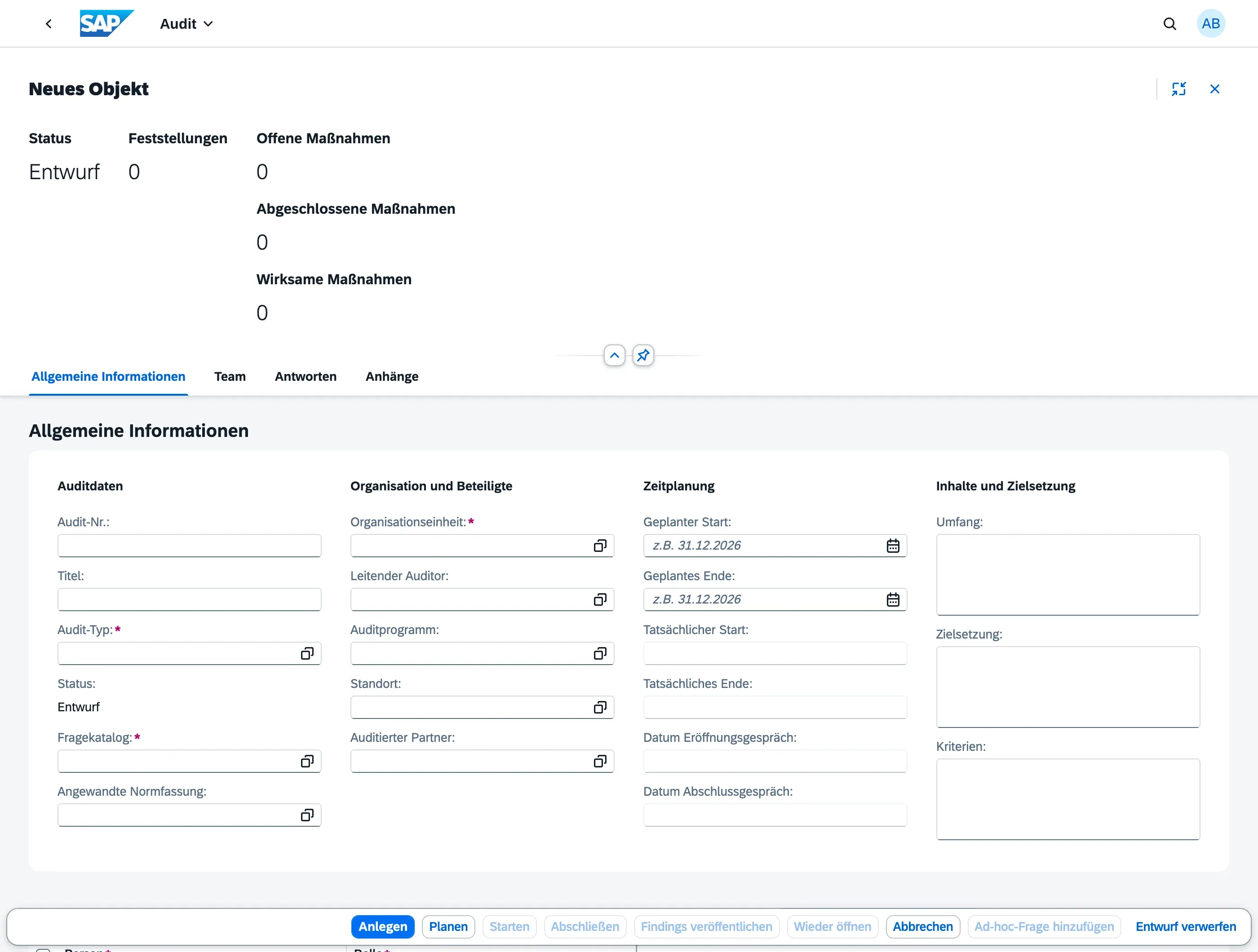
- Fill in the required fields:
- Title — a descriptive name for the audit
- Audit Type — e.g. Internal Audit, Supplier Audit (configured in Master Data)
- Org Unit — the organisational unit being audited
- Question Catalog — the checklist to use during fieldwork
- Planned Start / End Date
- Optionally add:
- Location — specific site within the org unit
- Audited Business Partner — for supplier or customer audits
- Lead Auditor — designated lead for this audit
- Scope Text, Objective Text, and Criteria Text — free-text description of audit scope, goals, and the requirements (policies, procedures, standards) the audit is assessed against
- Applied Standard — the norm edition this audit is assessed against (e.g. “ISO 9001:2026”). If the audit is created from an audit program, the program’s default value is copied over, but it stays editable on the audit. Once the audit moves to In Progress, the applied standard can no longer be changed — it’s part of the audit record
- Add Team Members — assign persons with their roles (auditor, auditee, etc.); see Audit Team & Roles for details
- Save as draft. The audit stays in Draft status until explicitly planned.
Audit Statuses
Section titled “Audit Statuses”See Audit Lifecycle for the full status flow and allowed transitions.
| Status | Meaning |
|---|---|
| Draft | Being prepared; all fields and team can still change |
| Planned | Scheduled; team and catalog are set, fieldwork not yet started |
| In Progress | Fieldwork underway; question responses and findings can be recorded |
| Completed | Fieldwork concluded; question responses and the team are locked. Findings remain editable during this review stage |
| Findings Published | Findings have been formally published to relevant stakeholders |
| Cancelled | Audit was abandoned; cannot be reopened |
Attachments
Section titled “Attachments”You can attach files (documents, photos, evidence) directly to an audit using the Attachments section on the audit object page. This is separate from attachments on individual findings. Audit attachments can be added or removed in any status except Cancelled.
Change History
Section titled “Change History”All changes to an audit — including field edits and status transitions — are automatically tracked. The Change History section at the bottom of the audit object page shows who changed what and when.
Next Steps
Section titled “Next Steps”- Audit Lifecycle — understand status transitions
- Audit Team & Roles — assign auditors and other team members
- Conducting Fieldwork — record question responses and raise findings
- Audit Programs — grouping audits into a program
- Norm Standards — how norm editions are maintained as master data