

Action Items
Action Items are corrective or preventive actions (CAPA) assigned in response to a finding or to a root cause analysis. They live independently of whatever they came from — so they remain active and trackable even after the audit is completed or the analysis is closed.
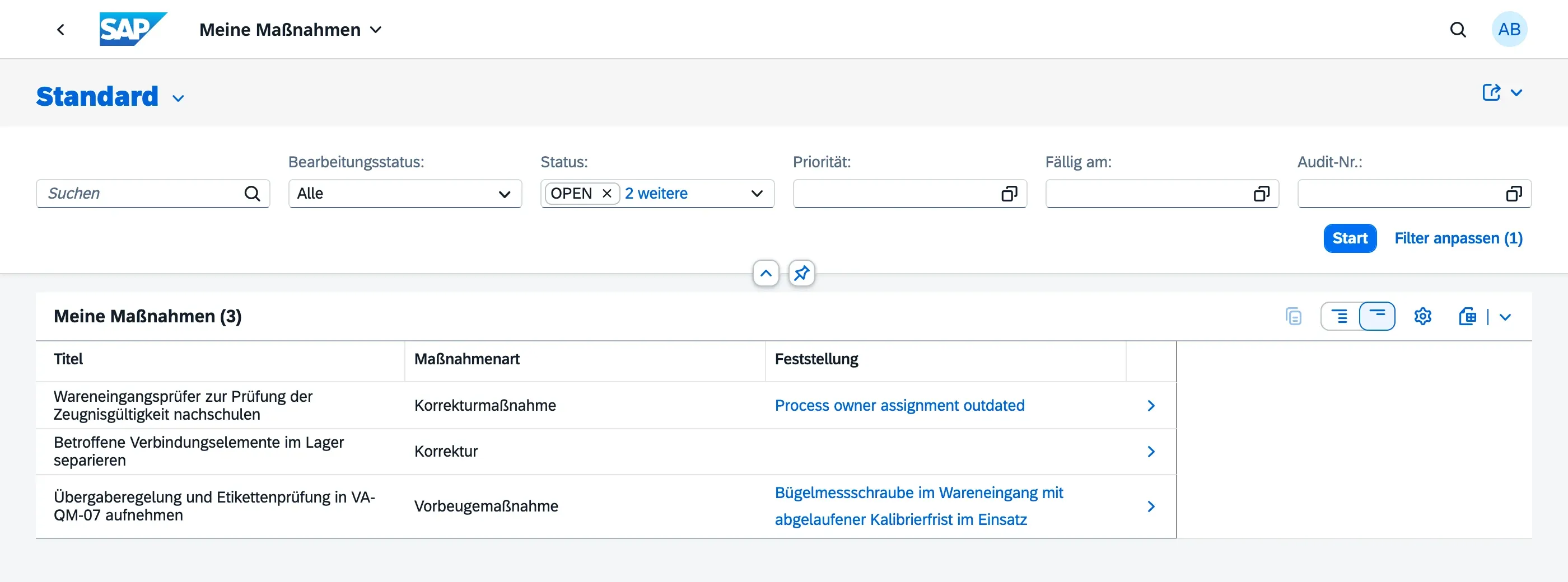
Action items are worked from two views, depending on your role:
- My Actions — the personal worklist for the person responsible for completing an action
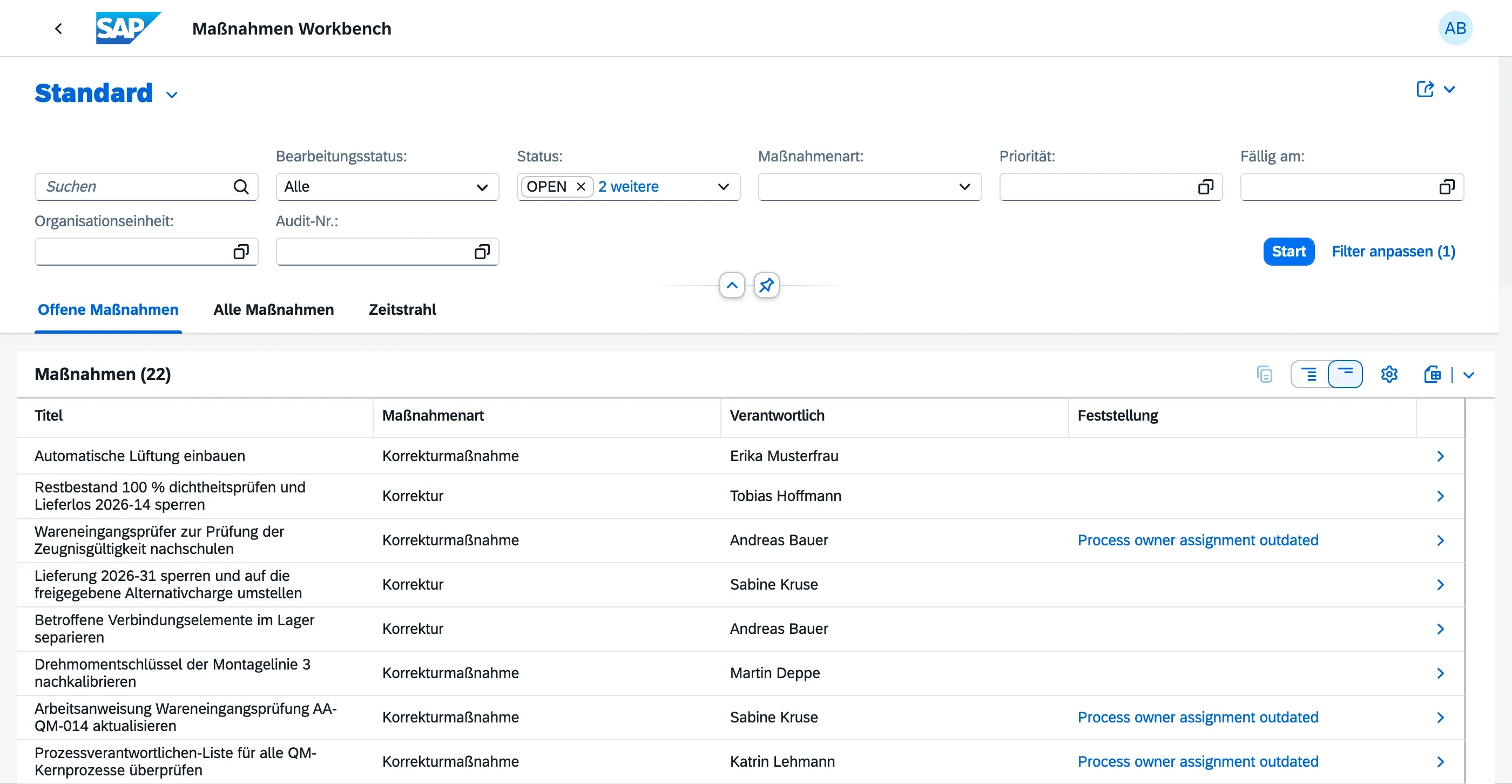
- Action Workbench — the manager’s cross-audit view for oversight, comments, and effectiveness review
Creating an Action Item
Section titled “Creating an Action Item”Action items are created from within a Finding while the parent audit is In Progress:
- Open the finding
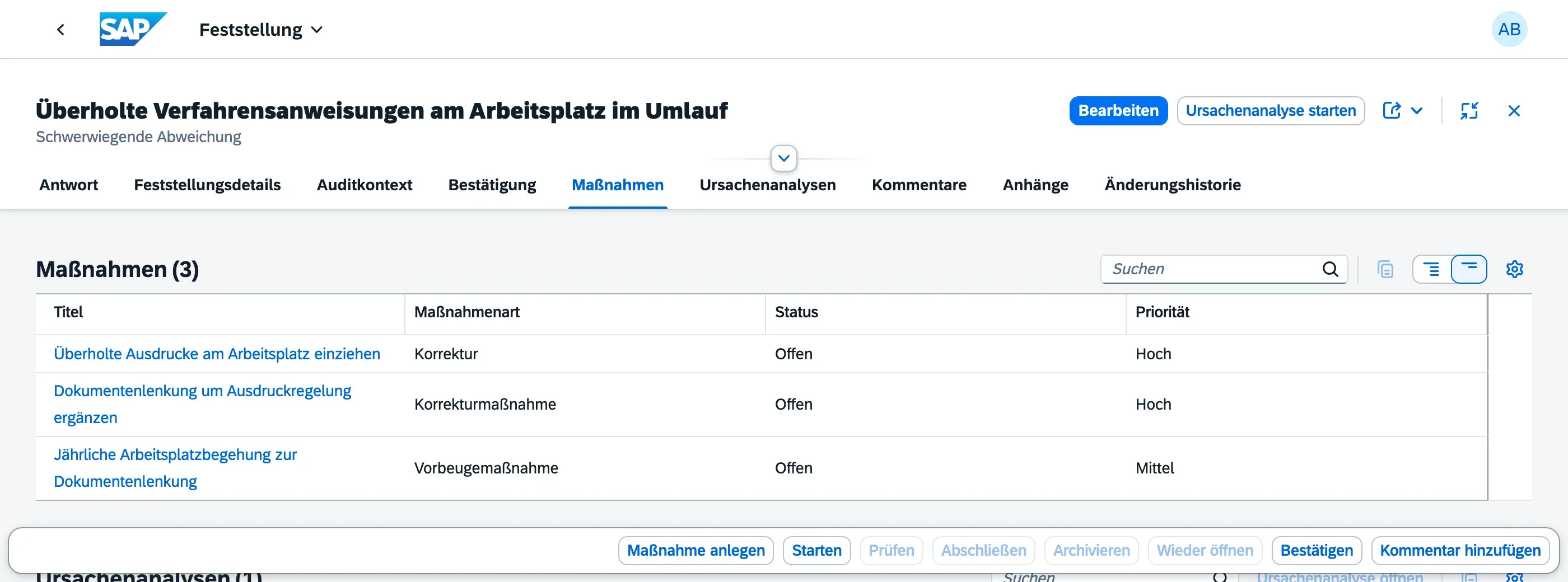
- Navigate to the Action Items tab
- Choose Create Action Item
- Fill in:
- Title — what needs to be done
- Description — detailed explanation of the required action
- Action Type — what kind of action this is (see below), required
- Responsible Person — who is accountable for completing this action
- Due Date — deadline for completion
- Priority — urgency level (configured in Master Data)
Action Type: Correction vs. Corrective Action
Section titled “Action Type: Correction vs. Corrective Action”ISO 9001:2015 requires distinguishing between two different kinds of response to a finding, so every action item must be classified with one of the following types:
| Action Type | Meaning |
|---|---|
| Correction | Immediate remediation of the nonconformity itself — for example, reworking a defective part or re-issuing an incorrect document. This fixes the symptom, not necessarily the underlying cause. |
| Corrective Action | Eliminates the root cause of the nonconformity so it does not happen again — for example, retraining staff or changing a faulty process step. |
| Preventive Action | Addresses a potential nonconformity that has not yet occurred, based on a risk identified during the audit. |
Choosing the right type matters for reporting: it lets you see whether a finding was only patched (Correction) or whether its cause was actually addressed (Corrective Action) — a core requirement of ISO 9001:2015, clause 10.2.1.
Where action items come from
Section titled “Where action items come from”Two sources feed the same worklists:
- From a finding — the classic path, described below
- From a root cause analysis — a 5-Why analysis creates general action items, an 8D analysis creates one per discipline: the immediate containment action (D3), the corrective actions (D5/D6) and the preventive action (D7)
Action items from a root cause analysis behave exactly like those from a finding. The only visible difference is that the Finding column stays empty when the analysis had no finding behind it — a customer complaint, for example, that never went through an audit.
Action Item Lifecycle
Section titled “Action Item Lifecycle”Action items follow a structured lifecycle with explicit status transitions:
| Status | Meaning |
|---|---|
| Open | Assigned but not yet started |
| In Progress | Work has begun |
| Verified | Work completed and submitted for review |
| Effective | Effectiveness has been confirmed (optional step) |
| Closed | Verified, accepted, and closed by the responsible person or manager |
| Cancelled | Action item was withdrawn |
The responsible person drives the first steps in My Actions; the remaining steps (marking effective, closing, cancelling) are typically handled in the Action Workbench.
Change History
Section titled “Change History”All changes to action items — status transitions, field edits, attachment uploads — are tracked automatically and visible in the Change History section.
Next Steps
Section titled “Next Steps”- My Actions — the personal worklist
- Action Workbench — the manager’s oversight view